|
|
|
|
|
|
|

| The
PineWood Racer program as noted on the software page has several programs
that are used to setup a race. The following will show you some of
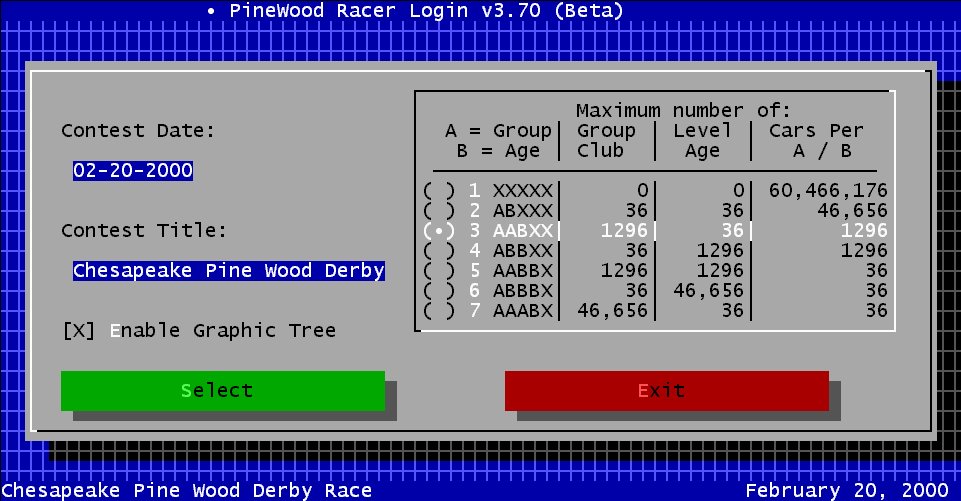
the screen shots of the programs. First off, this is a screen shot of the login program setup screen. Here you will enter the race information such as the date and title of the race. You will also enter information for the type of car code you will be using. Generally every Group/Club will have it's own code along with an Age/Level. The reason for this is, if you would like to divide your clubs up into smaller divisions by age levels, then you can. You can put a J for Juniors, S for the staff cars and T for the teen cars etc. Likewise every club or group could have there own group name. This screen is also where you select the code used to identify each individual car. You have 7 options to choose from. When choosing an option, decide how many alphanumeric characters you want to represent a, group name, or age bracket, and how many individual cars you want to be able to run per group/age bracket. "A" indicates an alphanumeric character for group name. "B" indicates a alphanumeric character for an age group. an "X" indicates a n alphanumeric character for each individual car per age/group bracket. Of the seven selections the character shows how many individual clubs/groups, Age Levels, and cars available at each setting.
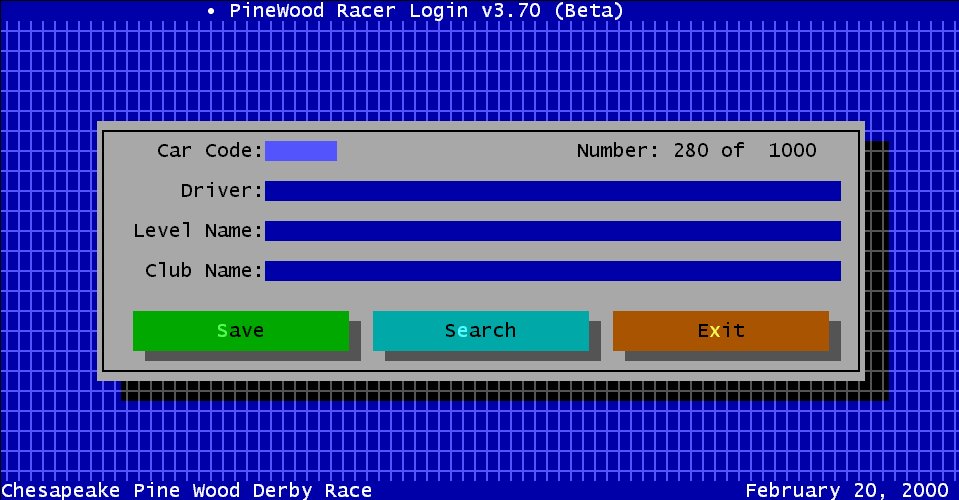
The next screen shows the login program. You will be using this program to enter the names into the database. You would first fill in the car code (or use the barcode reader to enter it for you) and then enter the name corresponding to the car. You would also enter in the club/group name (if they are not already in the data base) then you would enter in the age level of that car. You cold also ignore the club/group and age level names if you don't use them. But after you have entered the name, the program will figure out automatically what name goes with what prefix of the barcode. So once you enter in the club or group once, it's automatically saved.
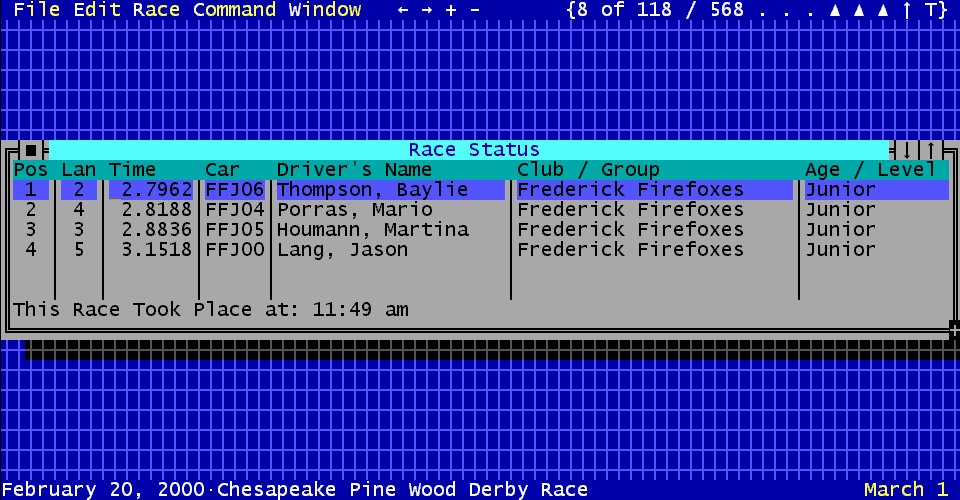
The following screen is a screen shot from the PineWood Racer program it's self. It is displaying some race information right now. As you can see the information are in windows and can be moved around the screen. All the screens can be printed and customized as needed.
Click to enlarge Screen Shots
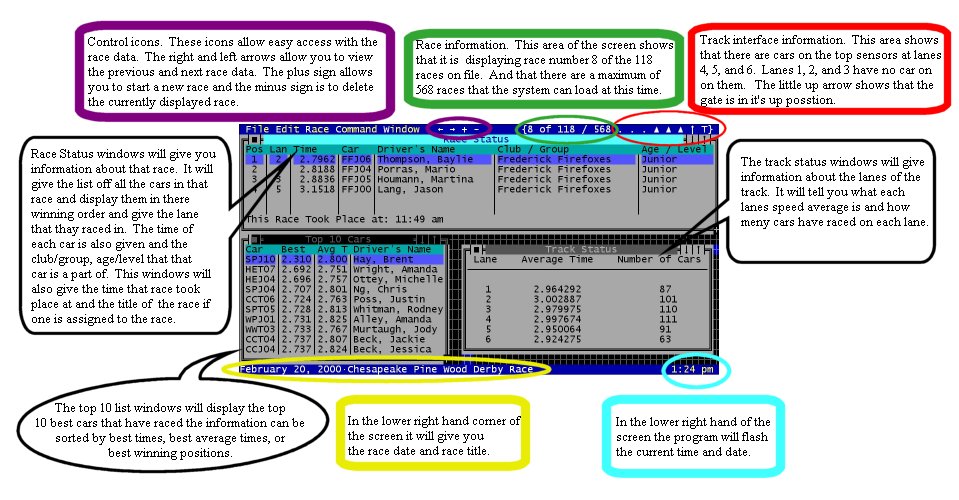
This following screen shot will give you some detailed information which this program gives on it's main screen with all it's windows open.
The following screen shot is just one of the many screens used to configure the program. From setting up the terminal to how to display the top 10 list and setting up the printer.
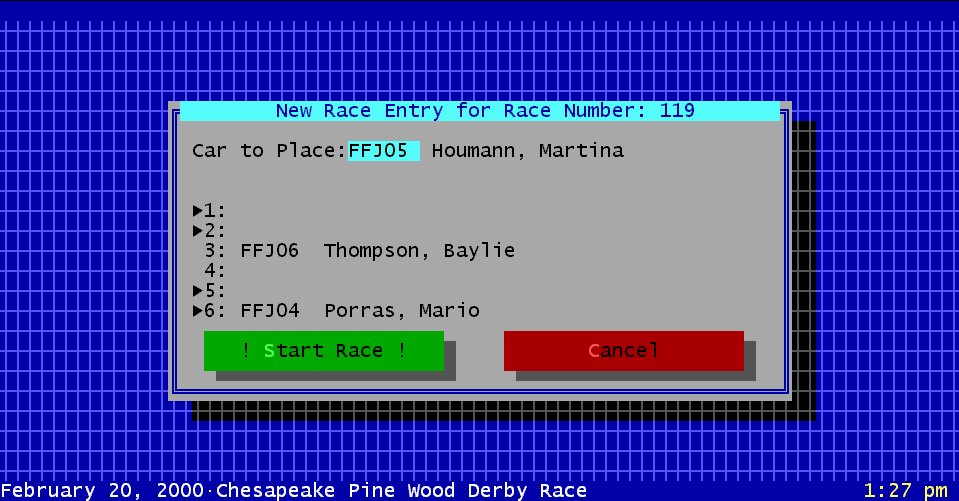
This next screen shows how a new race is created. Once a car is scanned into the computer using a barcode reader or the user clicks on a new race option, this screen will come up. The user will enter the car number in the field "Car to Place" and then the name of that car will automatically be displayed. The computer will place an arrow next to the lane(s) on which the car has not yet raced and gives a recommendation as to what lane(s) it should race on. The user still has full control of the placement of the car. But if the user does not want to race the same car on the same track then this will help him. Once a car is placed it will be displayed and then the next car number can be entered in and it can then placed. The race can be started by pressing the "Start Race" button, only if the track is configured with an electronic gate release. Otherwise it must be started by hand.
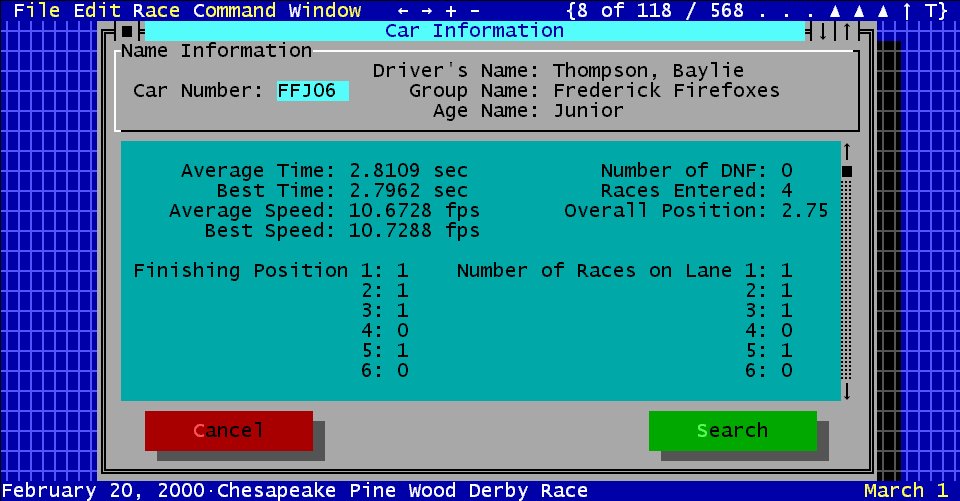
The following screen shot shows how you can get detailed information on a car. This information is also printable. Click here to see.
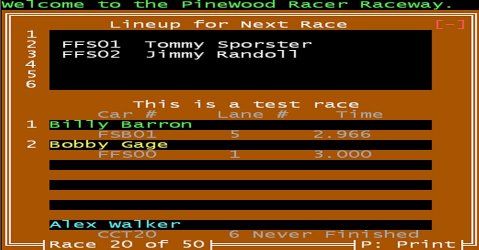
The following screen is a screen image of the terminal program. This is the program that will be shown up on a big screen TV or a projector. The top half displays the lineup for the next race. It displays the names of the cars as they are placed on the track. The bottom section displays the results of the last race.
|
|||
© Copyright 2000 - 2010 By GageDigital
Oblong, IL 62449
E-Mail: